A severe Trojan warning in Windows Security can be frightening, especially when the threat still appears after restarting the computer or after running Microsoft Defender Offline Scan. In this real case, Windows Security repeatedly detected:
Trojan:Win32/JSCealTaskExec.AA
Trojan:Win32/JSCealTaskExec.AB
Trojan:Win32/JSCealTaskExec.AC
The alert level was Severe, and Windows Security showed the status as Active. Microsoft’s malware encyclopedia describes Trojan:Win32/JScealTaskExec.A as a threat that can perform actions chosen by a malicious actor on the device, and Microsoft Defender Antivirus detects and removes this threat.
The important part of this case was that the Trojan was not just a file sitting in the Downloads folder. It was being triggered by a scheduled task that launched PowerShell with an encoded command. That is why the warning kept returning even after Defender Offline Scan.
What happened in this real case?
The PC showed repeated severe Windows Security alerts. Opening the detection details revealed that the affected item was not a normal document or photo. It was a command line similar to:
C:\Windows\System32\WindowsPowerShell\v1.0\powershell.exe -NoProfile -EncodedCommand ...
This is a critical clue. PowerShell itself is a legitimate Microsoft task automation and scripting tool, so the correct action is not to delete PowerShell. Microsoft describes PowerShell as a command-line shell, scripting language, and configuration management framework used for automation.
The suspicious part was the way PowerShell was being launched: with -EncodedCommand, hidden inside a scheduled task. That pattern often means something is trying to run a hidden or obfuscated command.
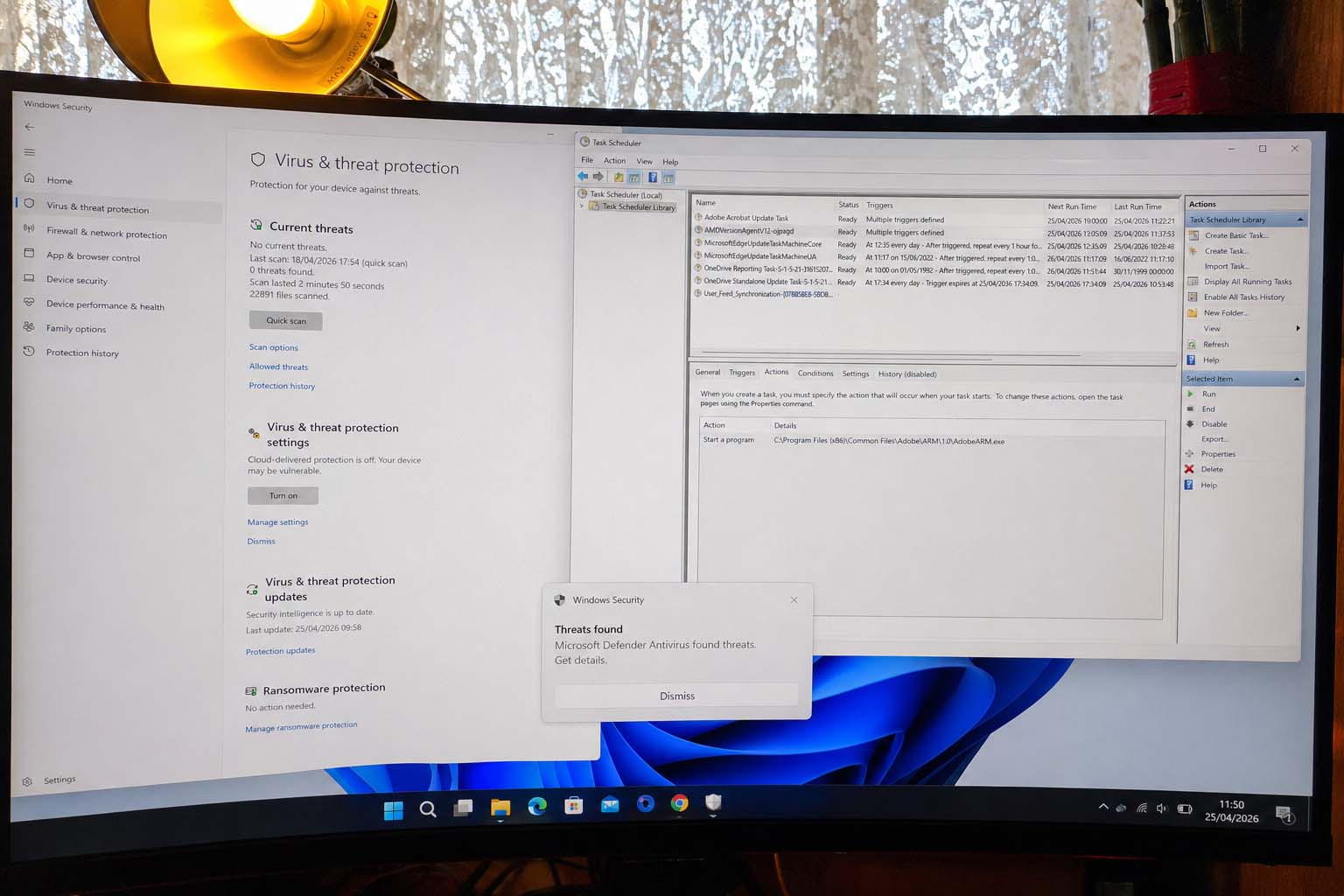
In this case, Task Scheduler revealed a suspicious task named similar to:
AMDVersionAgentV12-ojpxgd
Its Actions tab showed several entries launching:
powershell -NoProfile -EncodedCommand ...
After that task was ended, disabled, and deleted, Windows Security changed from active severe threats to:
No current threats
0 threats found
That strongly indicates the scheduled task was the persistence mechanism keeping the Trojan active.

Why did the Trojan keep coming back?
Malware often tries to survive restart. One way to do that is by creating a scheduled task. Windows Task Scheduler is a legitimate Windows feature that can automatically run programs or commands when certain conditions are met. Microsoft explains that Task Scheduler monitors chosen criteria, called triggers, and executes the task when those criteria are met.
Triggers can be time-based or event-based. Microsoft’s Task Scheduler documentation says a trigger is a set of criteria that starts a task, and a task can have one or more triggers.
That means a malicious scheduled task can be configured to run:
- when the user logs in,
- at a specific time,
- repeatedly every hour,
- after startup,
- or after another event.
In this case, the suspicious task used PowerShell as its action. Microsoft explains that task actions are stored as part of the task definition and used by the Task Scheduler service.
So the antivirus was detecting the malicious command, but the scheduled task was still present. When the task ran again, the threat appeared again.
Why Microsoft Defender Offline did not fully solve it
Microsoft Defender Offline is still useful. Microsoft says it runs from a trusted environment outside the normal Windows kernel, which helps target malware that tries to bypass the Windows shell or hide while Windows is running.
Microsoft also says Defender Offline runs after a restart without loading Windows, making it harder for persistent malware to hide or defend itself.
However, in this case, the practical issue was persistence through a scheduled task. The offline scan did not remove the task that was repeatedly launching the suspicious encoded PowerShell command. Once the task was removed manually, the visible active detection cleared.
This does not mean Defender Offline failed completely. It means the user still had to remove the persistence mechanism that kept re-triggering the detection.
How could this Trojan have arrived?
I cannot confirm the exact source of this infection without forensic logs, browser history, download history, email records, and event logs. However, Microsoft lists several common ways malware can infect a PC, including spam email, removable drives, unwanted software, suspicious websites, compromised webpages, and keygen/crack tools. Microsoft also warns that keygen tools often install malware at the same time.
CISA says phishing can trick users into opening harmful links, emails, or attachments that may infect devices.
Microsoft Defender for Endpoint guidance also states that links and attachments in email, SMS, Microsoft Teams, and other messaging tools are common ways attackers infect devices, either by opening malware directly or triggering stealthy downloads.
Common possible infection routes include:
- Downloading a fake software installer.
- Opening a malicious email attachment.
- Clicking a phishing link.
- Installing cracked software, activators, or key generators.
- Downloading browser extensions from unsafe sources.
- Running a script or tool from an unknown website.
- Using an infected USB drive.
- Visiting a compromised website that abuses a browser or software vulnerability.
In this specific case, the fake-looking task name was important. It looked like an “AMD” update task, but the action showed PowerShell encoded commands instead of a legitimate AMD updater path. That mismatch was the clue.
Step-by-step: how to clean this type of infection safely
Step 1: Disconnect from the internet
If Windows Security shows a severe Trojan as active, disconnect Wi-Fi or unplug Ethernet. This reduces the chance of the malware communicating externally while you investigate.
Do not use the infected PC for:
- banking,
- crypto,
- trading accounts,
- email login,
- WordPress admin,
- password managers,
- or shopping.
Microsoft describes this Trojan family as capable of performing actions chosen by an attacker, so caution is justified.
Step 2: Open Windows Security and check Current threats
Go to:
Windows Security → Virus & threat protection
Look under:
Current threats
If it says Threats found or Action needed, open each item and read the details.
Microsoft says the Current threats area shows threats currently found on the device, previous quarantined threats, and items that were allowed to run.
If you see an option to Remove or Quarantine, use that. Do not choose Allow on device.
Step 3: Check Allowed threats
Go to:
Windows Security → Virus & threat protection → Allowed threats
In this real case, the page said:
No threats
That was good. It meant the Trojan had not been manually allowed.
Microsoft says the Allowed threats page lists threats that Windows Security identified but the user chose to allow, and Windows Security will not act against allowed threats until they are removed from that allowed list.
If you see the Trojan there, remove it from the allowed list.
Step 4: Check the detection details
Open the Trojan entry and check Affected items.
In this case, the details showed:
powershell.exe -NoProfile -EncodedCommand ...
That means the antivirus was detecting a suspicious encoded PowerShell command. Do not delete PowerShell itself. PowerShell is a legitimate Microsoft tool. The target is the startup method that launches the suspicious command.
Step 5: Open Task Scheduler
Press:
Windows key + R
Type:
taskschd.msc
Press Enter.
Go to:
Task Scheduler Library
Click each task and inspect the bottom tabs:
General | Triggers | Actions | Conditions | Settings | History
The most important tab is:
Actions
You are looking for suspicious actions such as:
powershell.exe
powershell -NoProfile -EncodedCommand
cmd.exe
wscript.exe
cscript.exe
mshta.exe
Also look for paths containing:
AppData
Temp
Downloads
These are not always malicious, but they require caution when paired with random task names or encoded commands.
Step 6: Identify the malicious scheduled task
In this real case, one task had a suspicious name:
AMDVersionAgentV12-ojpxgd
The Actions tab showed multiple entries like:
powershell -NoProfile -EncodedCommand ...
That was the main persistence mechanism.
A normal update task usually points to a known vendor executable. For example, an Adobe update task may point to an Adobe path, such as:
C:\Program Files (x86)\Common Files\Adobe\ARM\1.0\AdobeARM.exe
That is very different from a task pretending to be an AMD update while launching encoded PowerShell commands.
Step 7: End, disable, and delete the suspicious task
In Task Scheduler:
- Select the suspicious task.
- In the right-side panel under Selected Item, click End.
- Click Disable.
- Click Delete.
If right-click does not work, use the right-side Actions panel.
If Task Scheduler cannot delete it, open Command Prompt as Administrator and use:
schtasks /Delete /TN "TASK-NAME-HERE" /F
Replace TASK-NAME-HERE with the exact suspicious task name. Microsoft documents schtasks /Delete as the command that deletes a scheduled task from the schedule; Microsoft also notes that this command does not delete the program the task runs and does not interrupt a running program.
Step 8: Recheck the remaining scheduled tasks
After deleting the suspicious task, inspect the remaining tasks one by one.
Leave normal vendor tasks alone unless the Actions tab shows suspicious encoded PowerShell, unknown scripts, or strange paths. Microsoft Edge, OneDrive, Adobe, and similar update tasks can be legitimate, but the action path must make sense.
The practical rule is:
Normal-looking task name + normal vendor path = usually leave it
Normal-looking task name + encoded PowerShell = suspicious
Random task name + encoded PowerShell = highly suspicious
Step 9: Restart the PC
Restart the computer after deleting the suspicious task.
Then open:
Windows Security → Virus & threat protection
In this case, after the infected task was removed, Windows Security showed:
No current threats
0 threats found
That is the result you want to see.
Step 10: Turn Windows protection back on
In this case, several protections were off, including cloud-delivered protection, firewall, and tamper protection. That is dangerous because malware often tries to weaken security settings.
Go to:
Windows Security → Virus & threat protection → Manage settings
Turn on:
Real-time protection
Cloud-delivered protection
Automatic sample submission
Tamper Protection
Microsoft says real-time protection continuously monitors the device for viruses, malware, and spyware. Microsoft also says that when real-time protection is off, files opened or downloaded are not scanned until the next scheduled scan.
Microsoft says cloud-delivered protection allows Defender to receive constantly updated improvements from Microsoft while connected to the internet, improving identification, stopping, and fixing of threats.
Microsoft says tamper protection helps prevent malicious apps from changing important Microsoft Defender Antivirus settings, including real-time protection and cloud-delivered protection.
Step 11: Turn Windows Firewall back on
Go to:
Windows Security → Firewall & network protection
Turn the firewall on for:
Domain network
Private network
Public network
Microsoft describes Windows Firewall as part of the Windows Security app’s protection features.
Step 12: Run a Full scan
Go to:
Windows Security → Virus & threat protection → Scan options → Full scan → Scan now
Microsoft’s Windows Security documentation states that Scan options can be used to start a Full scan, Custom scan, or Microsoft Defender Antivirus Offline scan.
A full scan is slower than a quick scan, but it is appropriate after a severe Trojan detection.
Step 13: Run Microsoft Safety Scanner as a second opinion
Because this case involved a severe Trojan and persistence through Task Scheduler, running a second Microsoft tool is sensible.
Download the latest Microsoft Safety Scanner from Microsoft and run a Full scan. Microsoft says Safety Scanner is an on-demand tool that helps remove viruses, spyware, and other malicious software, and Microsoft notes that it expires 10 days after download, so a fresh copy should be downloaded for a new scan.
Step 14: Use Autoruns if the threat returns
If the Trojan returns after deleting the visible scheduled task, use Microsoft Sysinternals Autoruns.
Autoruns is useful because Microsoft says it shows programs configured to run during bootup or login, and it covers startup folders, Run and RunOnce registry keys, Explorer extensions, browser helpers, services, drivers, and other autostart locations.
In Autoruns:
- Run as Administrator.
- Choose Hide Microsoft Entries.
- Choose Hide Windows Entries.
- Enable signature verification if available.
- Search for:
powershellEncodedCommandAppDataTemp- the suspicious task name
- Untick suspicious entries first.
- Restart.
- If the detection stops, delete the entry.
Step 15: Change passwords from a clean device
Do not change passwords from the infected PC until scans are clean.
Use your phone or another trusted device and change passwords for:
- Microsoft account,
- email,
- banking,
- crypto accounts,
- trading accounts,
- WordPress/admin accounts,
- hosting accounts,
- browser-saved accounts.
I cannot confirm that this specific infection stole passwords. However, because Microsoft describes this Trojan family as able to perform actions chosen by a malicious actor, treating important passwords as potentially exposed is the safer security response.
Step 16: When to reset Windows completely
If the Trojan returns after:
- deleting the scheduled task,
- running a Full scan,
- running Microsoft Defender Offline,
- running Microsoft Safety Scanner,
- checking Autoruns,
then stop trying to repair manually and reset Windows.
Microsoft says Reset this PC reinstalls Windows, and depending on the selected option, apps, settings, and personal files may be removed. Microsoft says Remove everything reinstalls Windows and removes personal files, apps, and settings. Microsoft also says Cloud download downloads a fresh copy of Windows from the cloud.
Before resetting, Microsoft advises backing up important files and checking the BitLocker recovery key if the device is encrypted.
For a serious recurring Trojan, the safer reset path is usually:
Settings → System → Recovery → Reset this PC → Remove everything → Cloud download
Only back up personal files such as:
Photos
Documents
PDFs
Personal videos
Do not back up or restore suspicious executable files such as:
.exe
.msi
.bat
.cmd
.ps1
.vbs
.js
.scr
.zip
.rar
What this case teaches
This case is a good example of why malware cleanup is not always just “delete the virus.” The visible detection was the symptom. The real persistence mechanism was a scheduled task launching encoded PowerShell.
The practical lessons are:
- Do not panic, but act quickly.
- Disconnect from the internet first.
- Do not delete Windows system tools like PowerShell.
- Read the affected item path carefully.
- Check Task Scheduler when PowerShell EncodedCommand appears.
- Delete the malicious scheduled task, not legitimate updater tasks.
- Turn Defender protections back on.
- Run Full scan and Safety Scanner afterward.
- Change important passwords from a clean device.
- Reset Windows if the infection returns.
Final safety checklist
After cleanup, the PC should show:
Windows Security → Virus & threat protection → No current threats
Allowed threats → No threats
Real-time protection → On
Cloud-delivered protection → On
Automatic sample submission → On
Tamper Protection → On
Firewall → On
Full scan → 0 threats found
If all of these are true after a restart, the machine is in a much safer state. If the same Trojan returns, the next step is deeper autostart inspection with Autoruns or a full Windows reset.